Showing posts with label pop up. Show all posts

Remove Listening at a High Volume Warning on Samsung Galaxy Devices [SOLVED] [NO ROOT]

June 15, 2016
Don't you just hate it when you plug in your headphones in a good mood & as soon as you try to increase the volume, Samsung stops you and a popup warns you about the harmful effects of listening at a high volume each time! To add to it, you actually have to tap OK to continue.


Pop-up message: Listening at a high volume for a long time may damage your hearing. Tap OK to allow the volume to be increased above safe levels.

It's one of those touchwiz things you hate! Well here is the easiest and the only way to get rid of this popup. So, let's begin.

It's a Tasker solution & you'll need the following apps: Tasker and AutoInput

Step 1: In the tasker app, under Profiles, Create a new profile by clicking on the '+' at the bottom right and browse to Event -> UI -> New Window
  • Label: *listening at a high volume*  [Note- please type the text along with the asterisks]
  • Window Type: Dialog
  • Priority: Normal
Press the back button to save.

Step 2: In the next pop-up menu, Select New Task + and assign it any name (eg., Auto Dismiss)

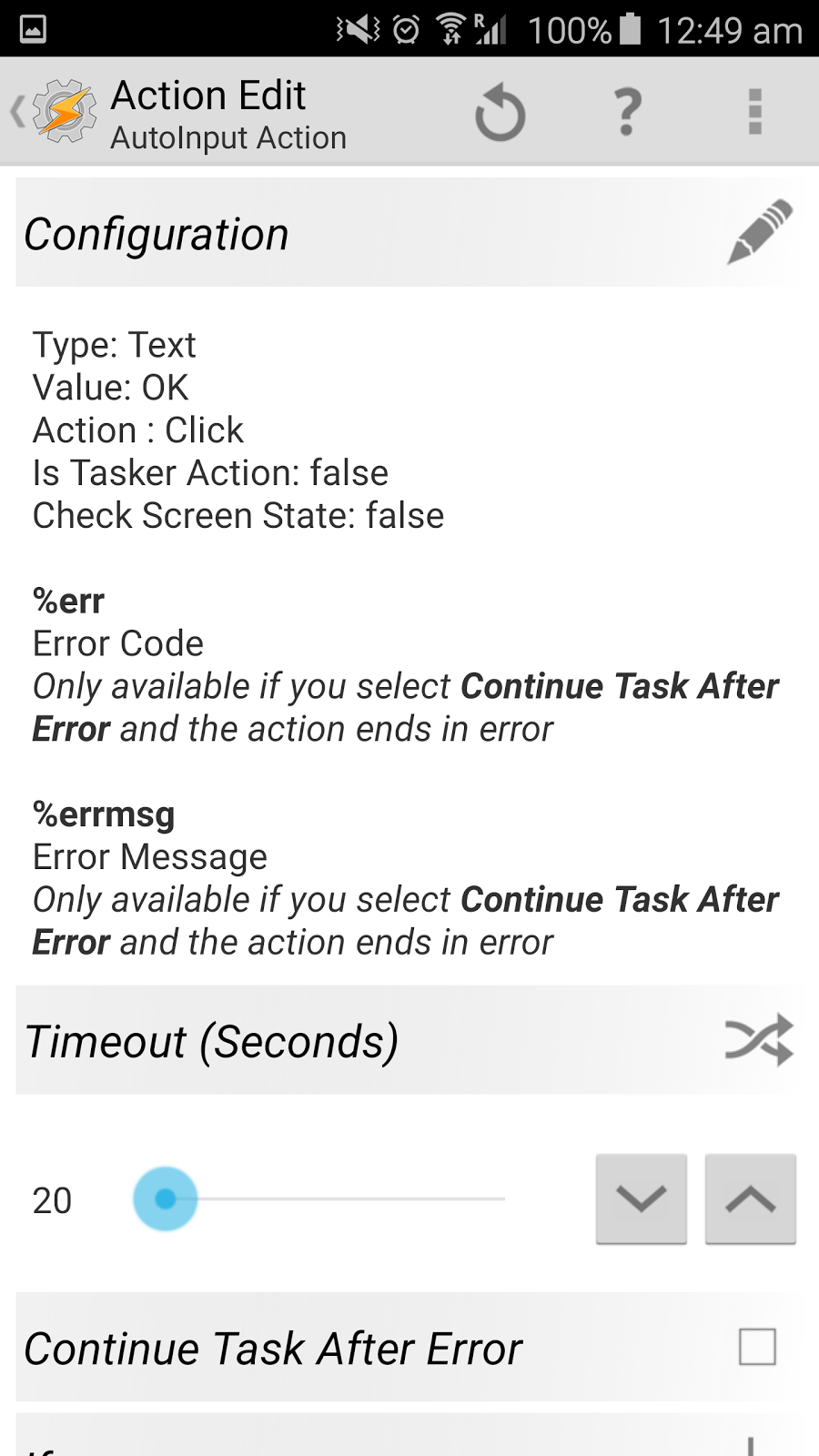
Step 3: Click on the '+' at the bottom center and select Plugin -> AutoInput -> Action and click on the edit button (pencil) under configuration. Under manual setup, select & fill in the following fields:
  • Action: Click
  • Field Type: Text
  • Field Text: type OK
Save the settings by clicking on the tick mark on top right of the screen.
Press the back button to save everything, until you exit from the tasker app.

You're done! It's all set up & now be assured the pop up will get dismissed automatically every time and won't bother you.
Disable the Auto Sync Pop-up message on Samsung Galaxy S7, S6, Note Series [NO ROOT]

April 14, 2016
Samsung's flagship devices, like the Galaxy S6, S7 and the Note Series, running on the latest Marshmallow version of android, are presently some of the best phones you can own. But they too have minor glitches and need UI refinements. 

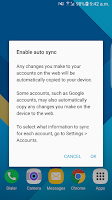
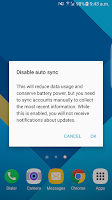
One of such being the annoying pop-up dialogue box with the message "Enable auto sync" or "Disable auto sync", asking for confirmation each time one tries to enable/disable the auto sync from from the notification quick settings.


If you find the pop-ups unnecessary, this is the Best solution you can presently have without root. Here, we'll automate your phone to automatically click on the OK button and get rid of the stupid pop-up dialogue box.

(This solution will work on all android devices with this pop-up. S6, S6 edge, S6 edge+, S7, S7 edge, Note 5, etc are supported)

---

It's a Tasker solution & you'll need the following app: Tasker and AutoInput

**Tasker is a paid app (worth paying). You can also try to google "Tasker apk".
AutoInput is available free only for trial, but here is a trick: If you don't start the 7 day trial by logging in, you can use the app as lite version for free, forever, but with few limitations.**


PREREQUISITES:

  • Install both the apps on your device.
  • Enable tasker and turn off Beginners mode from its preferences. (If you're unfamiliar with it, just google)
  • Enable accessibility service for both the apps. (Settings -> Accessibility -> Under Services group)
  • Enable administrator access for both the apps. (Settings -> Lock screen & security -> Other security settings-> Device administrators)


Step 1: Long press on the Home icon at the bottom left and click on Add + and give your project a name. eg., Sync Auto OK


Step 2: In the tasker app, under Profiles, Create a new profile by clicking on the '+' at the bottom right.

Step 2

Step 3: Click on Event -> UI -> New Window
Step 4: Fill the fields as follows:

  • Label: Enable auto sync
  • Window Type: Dialog
  • Priority: Normal
Step 4


Step 5: Press the back button to save.
Step 6: In the next pop-up menu, Select New Task +
Step 7: Assign a task name (eg. Auto Click OK) & click on the Tick mark.

Step 7


Step 8: Now, Click on the '+' at the bottom center.
Step 9: In the pop-up menu, select Plugin -> AutoInput -> Action
Step 10: Now, click on the edit button (pencil) under configuration
Step 11: Under manual setup, select & fill in the following fields:

  • Action: Click
  • Field Type: Text
  • Field Text: type "OK" (without quotes)
  • Save the settings by clicking on the tick mark on top right of the screen.

It should look like this after completing step from 8 to 11
Step 12: Press the back button twice.
Step 13: You should now be in the Profiles Tab, make sure everything looks like this:
Step 13

Step 14: Long press on the title of your profile ("New Window Enable auto sync, Dialog..") and select clone from the menu options. (Refer to the screenshots below)


Step 15: Click on the Event(trophy icon) from the second(cloned) profile and change the value of label from "Enable auto sync" to "Disable auto Sync" (without quotes).

Step 15
Step 16: Press the back button and make sure everything looks like this.

Step 16

You're done! Now you can exit from the app, & try turning on/off auto sync from the quick toggles & you'll notice how the pop-up gets dismissed automatically in less than a split second.

If you have any issues, you can comment below or contact through the Contact us page & I'll try to reply ASAP.

The above solution was successfully tested on Samsung Galaxy S6 edge running Marshmallow 6.0.1 with Tasker v4.8u1m & AutoInput v2.0


---
Disclaimer: This blog/owner of this blog disclaims all/any of the damage/loss caused to you/your device/data/etc due to use of the above stated method. You agree to perform the above at your own complete risk.

Samsung Galaxy S6: Remove confirmation pop-up when turning Mobile data on/off? [LOLLIPOP] [NO ROOT]

February 29, 2016
The Samsung Galaxy S6 and the S6 Edge are currently one of the best phones in the market but they do have certain small glitches and issues.


One of which being the annoying pop-up dialogue box with the message asking for confirmation each time one tries to turn OFF the Mobile Data from the notification shortcuts.

**Update: This annoying pop-up has been removed with the marshmallow update.**

If you find the pop-up unnecessary, this is the Best solution you can presently have without root. Here, we'll automate your phone to automatically click on the OK button and get rid of the stupid pop-up dialogue box.
---

It's a Tasker solution & you'll need the following app: Tasker and AutoInput

Tasker is a paid app (worth paying). You can also try to google "Tasker apk".
AutoInput is available free for trial but here is a trick: If you don't start the 7 day trial by logging in, you can use the app as lite version for free forever but with limitations.

PREREQUISITES:

  • Install both the apps 
  • Enable tasker and turn off Beginners mode from its preferences. (If you're unfamiliar with it, just google)
  • Enable accessibility service for both the apps. (Settings -> Accessibility -> Under Services group)
  • Enable administrator access for both the apps. (Settings -> Lock screen & security -> Other security settings-> Device administrators)

Step 1: Complete the prerequisites properly.

Step 2: In the tasker app, under Profiles, Create a new profile by clicking on the '+' at the bottom right.
Step 2


Step 3: Click on Event -> UI -> New Window
Step 4: Fill the fields as follows:
    • Label: Mobile data
    • Window Type: Dialog
    • Priority: Normal
Step 4


Step 5: Press the back button to save.
Step 6: In the next pop-up menu, Select New Task +

Step 6

Step 7: Assign a task name (eg. Auto Confirm) & click on the Tick mark. 

Step 7


Step 8: Now, Click on the '+' at the bottom center.
Step 9: In the pop-up menu, select Plugin -> AutoInput -> Action
Step 10: Now, click on the edit button (pencil) under configuration
Step 11: Under manual setup, select & fill in the following fields:
    • Action: Click
    • Field Type: Text
    • Field Text: type "OK" (without quotes)
    • Save the settings by clicking on the tick mark on top right of the screen.

Its should look like this after completing Step 10 & 11
Step 12: Press the back button twice.


Step 13: You should now be in the Profiles Tab, make sure everything looks like this:


You're done! Now you can exit from the app, & try turning off your mobile data from the quick toggles & you'll notice how the pop-up gets dismissed automatically in less than a split second.

The video compares the mobile data pop-up problem,
with & without the above solution (sorry for the video quality. It's a blogger issue)