Showing posts with label best. Show all posts

Tasker: One-Tap Wallpaper Changer

May 03, 2016
Introduction with today's project: A useful and easy setting-up tasker project, which will change your device's wallpaper with just a long-press of your home button.

The long press of the home button on any android device launches the Google Search/Google Now. Since many people do not use this feature, tasker can use this long press function to change your wallpapers.

If you use the Google search/Google Now with the home button(long press), you can still enjoy the changing of wallpaper but with a click on a shortcut on your home screen or by shaking your device(more battery consuming, hence not recommended).

PREREQUISITES:
  1. You'll need the app: Tasker (Please turn off beginner's mode in preferences).
  2. If you're using Marshmallow, you'll need to change the Device assistance app from Google to Tasker, from under default applications settings. (Go to settings-> Applications-> Default applications->Device assistance app->Device assistance app)
Here we'll divide the tutorial into two parts: A) Creating the task. B) Creating the trigger(profile).
  • If you don't use the home button to launch the google app, please follow both A and B part of the tutorial.
  • If you use the home button to launch the google app, follow Part A only and the Special steps* at the end of the article.

PART - A


Step 1: Move all your wallpapers in a folder "My Wallpapers" (anywhere on your device's internal or external storage with your file manager).

Step 2: Open the Tasker app. Long press on the Home icon at the bottom left and click on Add + and give your project a name. eg., Wallpaper Changer

Step 2

Step 3: Go to the Tasks Tab, Click on the '+' button at the bottom right and give a task name. eg., Wallpaper Switcher.


Step 3

Step 4: Click on the '+' button at the bottom and browse to Alert-> Flash and type "Changing Wallpaper" under text. Press the back button to save.


Step 5: Click on the '+' button at the bottom and browse to Variables-> Variable Set
  • Under Name type %randoimagefolder 
  • Under To *type the location of the folder in which your wallpapers are stored* 
    • eg. sdcard/Memory Card/My Wallpapers/
    • eg. emulated/storage/My Wallpapers/
[you can obtain this by checking the details/properties of your Wallpaper folder through your file manager.]
        • Press the back button to save.
        Step 5
        Step 6: Click on the '+' button at the bottom and browse to Java-> JavaScriptlet
        • Under Code type/paste the following code: 
        var i =listFiles(randoimagefolder, false).split("\n");
        var number = Math.floor( Math.random()*(i.length)); setWallpaper(i[number]);


        • Auto Exit - Checked.
        Step 6
        Step 7: Click on the '+' button at the bottom and browse to Task-> Stop. 

        Press back button to save.

        PART - B


        Step 1: Go to the Profiles Tab, Click on the '+' on the bottom right and select Event-> UI-> Assistance Request. Press the back button to save.

        Step 2: From the popup list of tasks, select your above made task "Wallpaper Switcher".
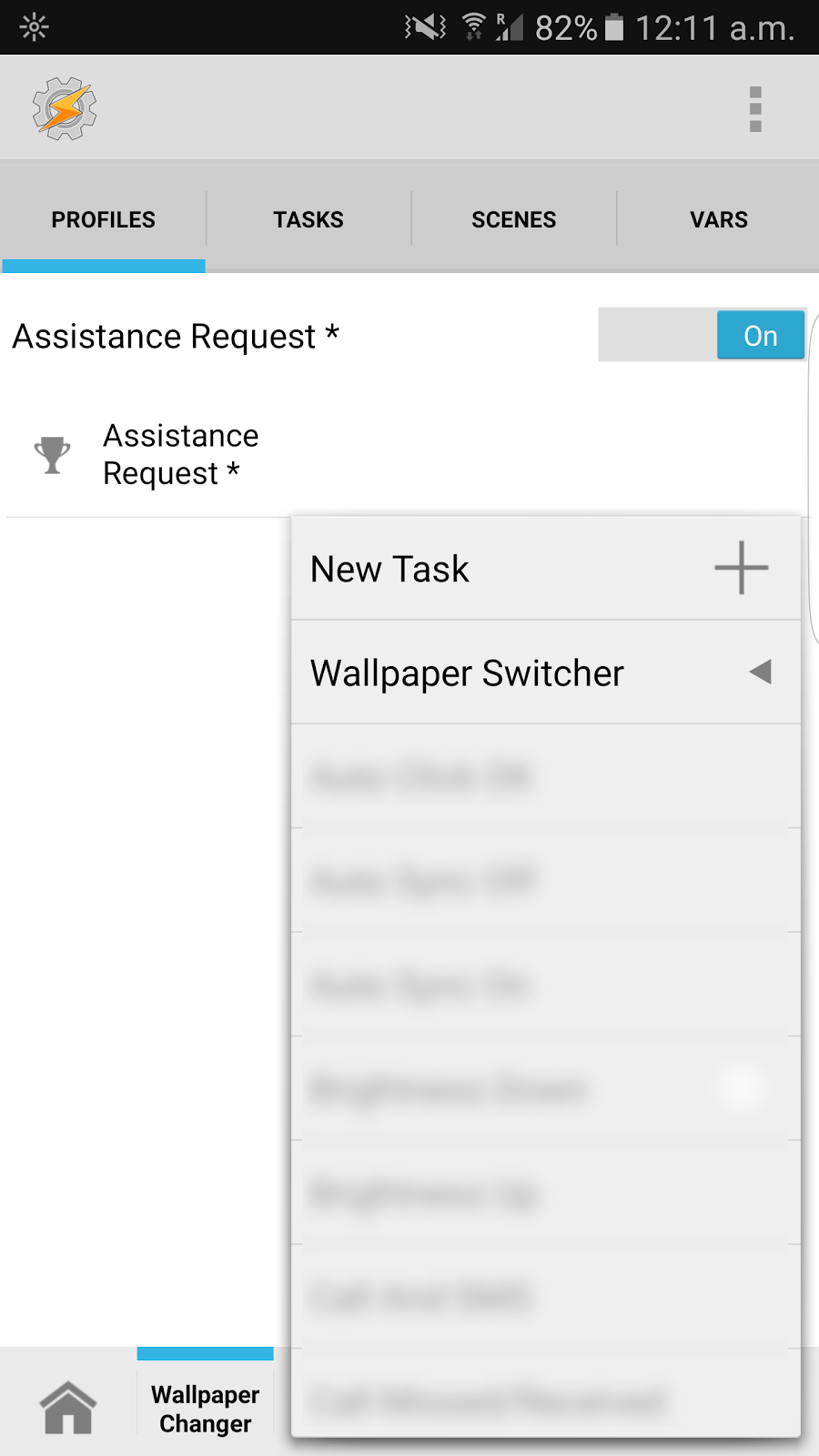
        Part B: Step 2
        It's Done! Just exit from the tasker app and long press on the home button to see it work.

        ---

        *Special Steps: For people who don't want to lose the feature of long pressing to launch the google search app can just set up a shortcut on their homescreen to run the task. Follow these steps after completing the 7 Steps given above in Part A.

        Step 1: Click on the square grid icon at the bottom right and go to the Built-In Icons to select any desired icon. Press the back button to save. Exit from the tasker app.

        Step 2: Go to widgets menu in your device, Find the tasker widgets and select Task Shortcut out of the three.

        Step 3: From the list presented, Select your task "Wallpaper Switcher". Press back and exit from the app. 

        Now, you can enjoy changing your wallpapers by just clicking on the Shortcut Icon on your homescreen.

        ---
        Disclaimer: This blog/owner of this blog disclaims any/all of the damage/loss caused to you/your device/data/etc to the use of the above stated method. You agree to perform the above at your own complete risk.
        The Complete Backup app for free!

        The Complete Backup app for free!

        June 16, 2014
        There are a lot of Backup apps available for Android. But which one is the best?

        We checked out several of them and found Easy Backup to be the winner.

        Easy Backup
        Developer: Mdroid Apps 

        Lets keep the review short & brief you with its features:

        1. It is a Free app! 
        2. Complete Backup solution. 
        3. Backup option for SMS, Contacts, Call log, MMS, Bookmarks, Dictionary & Apps too! 
        4. Backup to Google Drive, Gmail, sd_card(external or phone) & Dropbox. 
        5. Manual & Automatic scheduled Backup! 
        6. Light weight & simple app.

        and much more! 

        Other Backup apps occupy large space in phone and as it is a light weight app it can be used smoothly on phones with low space/RAM. 

        I have been using this app for over 1 year & it has never disappointed me. If you are to switch to a new phone, just use this app & data transferring will be like a breeze. 

        Go give it a try. The app will not disappoint you. 

        Download link: https://play.google.com/store/apps/details?id=com.mdroidapps.easybackup

        Like, share, comment, follow..!

        Best calculator apps for your Droid

        Best calculator apps for your Droid

        June 15, 2014
        3 best calculator apps for your droid. 

        Stock calculators are fine in use but they lack the extra features & excitement which 3rd party calculators can provide. 

        1. CalcU

        Developer: Hoot Apps

        It is one of the best calculator apps available for Android. 
        Truly made for a touch device with several gestural commands & haptic feedback.
        It provides 12 beautiful themes for your pleasent experience! 
        It includes buttons like ( ), sin, cos, tan, π, etc., with the upwards gesture of the screen. 

        Download link: https://play.google.com/store/apps/details?id=com.candl.athena

        2. Calculator Plus

        Developer: digitalchemi

        If you are a person who requires to perform business/tax calculations, this is the calculator for you. 
        With well placed, big, clear buttons, you can enjoy your calculations. It contain the memory buttons(M+, M-, MR, MC) for business calculations & buttons like π, ¹/x, x², √x for other calculations.

        It is a paid app, but a free version with ads is also available. 

        Download link: https://play.google.com/store/apps/details?id=com.digitalchemy.calculator.decimal

        3. RealCalc

        Developer: Quartic Software

        Definitely the best Scientific calculator for Android. 
        Neat interface, big keys, clear Fonts, simply a no nonsense calculator which provides excellent experience with features like long press of buttons, keep screen on(screen light will not turn off while calculator is in use), unique history & many more. 
        Searching for a scientific calculator, go nowhere else! 

        Download link: http://market.android.com/search?q=pname:uk.co.nickfines.RealCalc

        Do let us know in the comments how you liked them. 

        Like, share, follow.